Package Managers on Windows
Historically, Windows hasn’t been the most developer-friendly operating system when it comes to installing software quickly and centrally. For years, the default workflow was finding an .exe or .msi on a website, downloading it, and clicking through a setup wizard. Today, however, the ecosystem has matured. We now have solid options: WinGet, Microsoft’s official package manager, and community-driven alternatives like Chocolatey and Scoop.
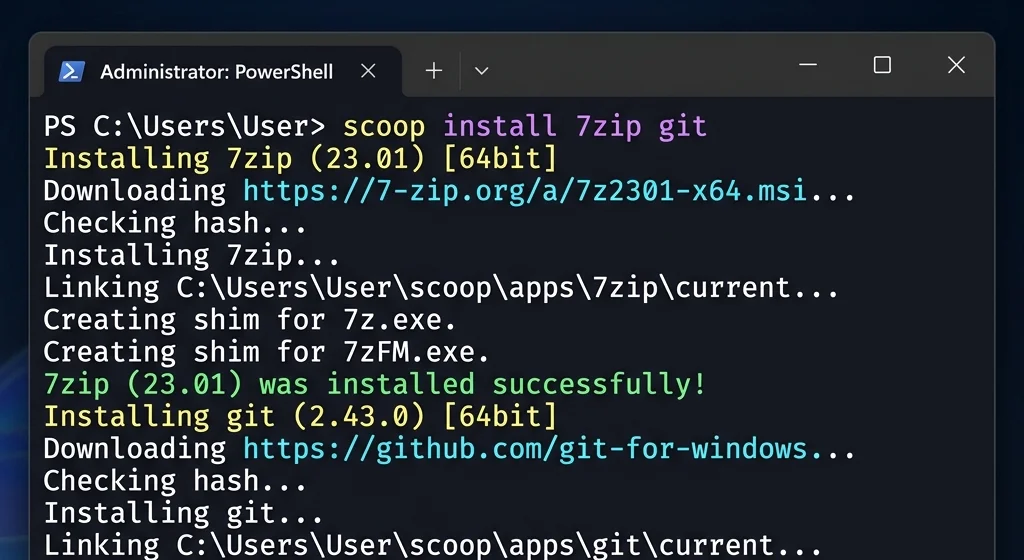
Installing software on Windows from the terminal: Scoop and WinGet as primary package managers.
Comparison
To get the most out of these tools, it’s important to understand their key differences:
Both WinGet and Chocolatey require administrator permissions, as they install software globally (for all users). Scoop, on the other hand, installs in user space (
~/scoop) and requires no elevated privileges.Chocolatey and Scoop require enabling PowerShell script execution; WinGet does not, since it is native to the system.
WinGet and Chocolatey include third-party software that may not be open source, while Scoop focuses exclusively on open-source software and development tools.
Scoop avoids popup interactions, enabling silent, unattended installation.
Which one to choose?
WinGet: Best for Microsoft software or anything that needs deep system integration (registry entries, Start Menu, file type associations).
Chocolatey: Suited for third-party software with a wide catalog:
choco install <package>
However, if most of your tools are open source or development-focused, Chocolatey adds little over Scoop—and still requires admin rights—so it falls outside my usual workflow.
Scoop: The natural choice for open-source software and development tools. It will feel familiar if you are coming from Linux or macOS.
Most of the tools I use daily are open source and development-oriented, so Scoop covers the vast majority. For the rest, I rely on WinGet.
Working with Scoop
To install Scoop, run the following in PowerShell:
Set-ExecutionPolicy -ExecutionPolicy RemoteSigned -Scope CurrentUser
Invoke-RestMethod -Uri https://get.scoop.sh | Invoke-Expression
Scoop organizes software into “buckets” (repositories). The main bucket is available right after installation, but you can add others as needed. Essential commands:
# Install packages
scoop install 7zip git

# Search for a package
scoop search <name>

# List installed apps and check update status
scoop list
scoop status

# Update everything
scoop update *
Why I Also Use WinGet
Even though Scoop is my primary tool, there are specific cases where WinGet is the right choice:
LibreOffice: WinGet registers it in the system as a file-type handler (
.odt,.ods, etc.), which Scoop intentionally skips to avoid touching global registry entries.Zed: Zed’s built-in auto-update works correctly when installed via WinGet. Installed through Scoop, Zed updates itself to the system’s default path, ignoring Scoop’s directory structure, which removes the managed executable and makes the editor impossible to launch.
zoxide: The developer explicitly recommends installing it via WinGet on Windows.
To update everything installed through WinGet:
winget upgrade --all
Pinning Versions
Some software is better left unpinned from automatic updates: Teams, OneDrive, Visual Studio Community, and Microsoft Visual C++ redistributables are typical examples, since their updates can break dependencies or work environments. In WinGet, use pin:
# List pinned packages
winget pin list

# Pin to the current version
winget pin add --id Microsoft.Teams

# Pin to a specific version
winget pin add --id Microsoft.Teams --version 1.2.3

# Block all updates
winget pin add --id Microsoft.Teams --blocking
Note
When running winget upgrade --all, pinned packages are skipped. To explicitly include them, use winget upgrade --all --include-pinned.
In Scoop, the equivalent is hold:
scoop hold <app>
scoop unhold <app>
Tips for Developers
Windows Developer Mode
Enable it under Settings > Privacy & security > For developers. This allows tools like Scoop to create symbolic links (mklink) without administrator permissions, which is required for Scoop to manage its internal structure correctly.
PowerShell Profiles
The profile for Windows PowerShell (v5.1) and PowerShell Core (v7+) are located in different paths:
Windows PowerShell (v5.1):
%USERPROFILE%\Documents\WindowsPowerShell\Microsoft.PowerShell_profile.ps1PowerShell Core (v7+):
%USERPROFILE%\Documents\PowerShell\Microsoft.PowerShell_profile.ps1
If you customize aliases, functions, or initialize tools like zoxide, make sure to configure both profiles.
Conclusion
My usual workflow is: Scoop for CLI tools and open-source software, and WinGet for GUI applications that need system integration or when the project itself recommends it. Chocolatey stays out of the picture because Scoop already covers everything I need in that category—without the extra admin requirements.
References
WinGet Official Documentation. Microsoft.
Scoop.sh. Community.
Chocolatey Software. Chocolatey Software, Inc.
Allow mklink for a non-admin user. Stack Overflow.